Smart home devices bring convenience and automation to our lives, but sometimes they require a reset. This guide provides a comprehensive overview of various reset types, common reasons for needing a reset, and detailed step-by-step procedures. Understanding these processes is crucial for maintaining a smoothly functioning smart home ecosystem.
From identifying the right reset method for a malfunctioning smart bulb to troubleshooting connectivity issues in a multi-device environment, this resource covers all aspects of resetting your smart home devices. We’ll also explore essential strategies for backing up data and ensuring post-reset security, providing a complete toolkit for smart home management.
Understanding Smart Home Device Reset Types
Properly resetting smart home devices is crucial for troubleshooting issues and maintaining optimal performance. A reset can resolve connectivity problems, software glitches, or simply refresh device settings to a factory-default state. Knowing the different types of resets and their implications allows users to address specific problems effectively.
Different Reset Types
Various reset options exist for smart home devices, each impacting device settings and functionality differently. Understanding these distinctions helps in choosing the most suitable method for resolving specific issues.
- Factory Reset: This comprehensive reset restores the device to its original factory settings, erasing all customized configurations, user accounts, and associated data. It’s typically the most drastic action, but it can resolve significant software or configuration problems that might not respond to other solutions. For instance, if a device is exhibiting erratic behavior due to corrupted settings, a factory reset might be the necessary solution.
- Network Reset: This reset focuses on the device’s network connections, reinitializing its Wi-Fi or Ethernet settings. It’s a useful tool for correcting Wi-Fi connection problems or issues with the device’s network configuration without affecting user data or customized settings. Network resets are often a good starting point for troubleshooting connectivity problems.
- App Reset: This reset targets the application or software controlling the device. It often re-establishes the connection between the device and the associated app, adjusting settings or resolving communication issues without impacting the device’s internal configuration. App resets are often a good intermediate step if the device isn’t responding to commands through the app.
Implications of Each Reset Type
The impact of each reset type on device settings, connections, and data varies significantly. Understanding these differences allows users to make informed decisions about the appropriate reset procedure.
- Factory Reset: This reset clears all user-specific settings, including customized configurations, saved preferences, and associated data. It effectively erases all personal information stored on the device itself. This action is irreversible; all custom settings are lost. This method is generally the last resort when other solutions fail.
- Network Reset: This reset removes the device’s current network configuration, forcing it to re-establish its connection to the network. This action will not erase user data or settings. The device might need to be reconfigured with new Wi-Fi or Ethernet details. However, user accounts and preferences will remain intact.
- App Reset: This reset often clears temporary data and settings within the application, which controls the device. This action does not affect the device’s internal configuration or stored data. The device will reconnect to the application with fresh settings, which may resolve issues with app-specific functionality or connectivity. User-specific settings and data on the device will not be lost.
Identifying the Appropriate Reset Method
Selecting the right reset method is crucial for resolving specific problems effectively. The severity and nature of the issue dictate the type of reset needed.
- If the device isn’t connecting to the network, a network reset is likely the best first step. This is because it does not impact user data.
- If the device is misbehaving or displaying unexpected errors, a factory reset might be necessary. However, consider other options first to avoid data loss.
- If the application controlling the device isn’t functioning correctly, an app reset is often a good intermediate solution.
Reset Procedures by Device Category
This table provides a general guideline for reset procedures across various smart home device categories.
| Device Category | Reset Procedure |
|---|---|
| Lights | Typically involves a factory reset through the app or a physical button on the device. Refer to the manufacturer’s instructions for specific procedures. |
| Thermostats | Factory reset options are often found in the device settings or through the app. Check the manufacturer’s documentation for detailed instructions. |
| Security Systems | Reset procedures vary depending on the system. Consult the manufacturer’s documentation or contact support for specific instructions. Factory resets might involve disabling the system entirely and then reconfiguring it. |
| Smart Plugs | Most smart plugs offer a factory reset through the application. Instructions are typically available in the device’s user manual. |
Common Reasons for Resetting Devices
Resetting smart home devices can be a necessary troubleshooting step for various issues. Understanding the common reasons behind these resets allows users to proactively address problems and maintain optimal device functionality. This section details the frequent causes of resets, along with preventative troubleshooting steps.Many smart home devices, like smart thermostats or security cameras, rely on a stable network connection and proper configuration.
Disruptions to these crucial elements can lead to device malfunctions, requiring a reset to restore normal operation.
Common Device Malfunctions
Several issues can cause smart home devices to malfunction, prompting a reset. These range from software glitches to hardware problems. Addressing these problems often involves troubleshooting steps before resorting to a complete reset.
- Connectivity Problems: Intermittent or lost connections to the network (Wi-Fi or Ethernet) can cause devices to stop responding or operate erratically. This could stem from network congestion, interference from other devices, or weak signal strength. Users should check their network settings, ensure a strong signal, and temporarily disable other network-intensive devices to resolve the problem.
- Configuration Errors: Incorrect or incomplete device configurations can lead to compatibility issues and operational problems. Users should review their device setup procedures, double-check the correct input of credentials (passwords, usernames, etc.), and ensure all necessary settings are properly configured. In some cases, contacting device support for assistance may be required.
- Software Glitches: Software updates, or even bugs in existing software, can disrupt the operation of a smart home device. Users can check for available updates and try to install them to resolve potential software issues. If updating doesn’t work, restarting the device is a common first step.
- Hardware Issues: Problems with the device’s internal components, such as the processor or memory, can manifest as intermittent failures or complete device malfunctions. If troubleshooting other issues doesn’t resolve the problem, it may be necessary to contact the manufacturer for support.
Network Issues Leading to Reset Needs
Network issues often affect multiple smart home devices, demanding a more comprehensive troubleshooting approach.
- Network Congestion: High network traffic can slow down or disrupt the communication between devices and the network. Checking for high bandwidth usage on the network and temporarily disconnecting non-essential devices can help.
- Network Interference: Interference from other devices or appliances operating on the same frequency band can disrupt the network and affect smart home device operation. Adjusting the placement of devices or using a different network frequency can mitigate interference.
- Router Problems: Issues with the router itself, such as a firmware problem or a hardware malfunction, can affect all devices connected to the network. Restarting the router is a crucial first step. If the router is not functioning properly, contacting the internet service provider is recommended.
Recurring Issues and Resetting
Recurring issues, such as intermittent device disconnections or unexpected restarts, often signal underlying problems requiring a deeper investigation.
- Software Compatibility Problems: Incompatibility between the smart home device and the operating system, or other software on the network, can cause ongoing problems. Checking for updates and ensuring compatibility with all related software components is essential.
- Device Overload: If a device is consistently stressed by excessive tasks or demands, it might exhibit repeated malfunctions. Assessing the current workload and adjusting tasks as needed is important.
- Security Concerns: If a device is suspected of being compromised, a complete reset can be a security measure. This will involve a complete wipe and reinstall of the device’s software.
Comparison of Reset Reasons Across Devices
| Device Type | Common Reset Reasons |
|---|---|
| Smart Thermostat | Network connectivity problems, incorrect temperature settings, software glitches, configuration errors. |
| Smart Security Camera | Network connectivity problems, software glitches, poor Wi-Fi signal, configuration errors. |
| Smart Light Bulbs | Network connectivity problems, configuration errors, software glitches, incorrect settings, compatibility issues. |
| Smart Speaker | Network connectivity problems, software glitches, compatibility issues with other devices, configuration errors. |
Step-by-Step Reset Procedures
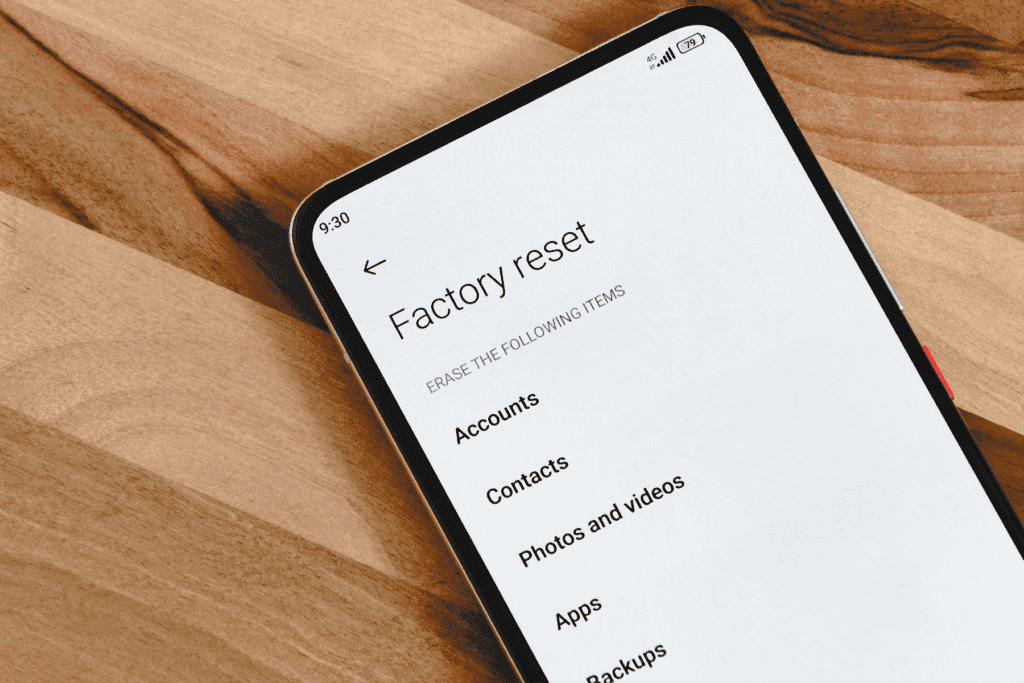
Properly resetting smart home devices is crucial for troubleshooting issues and maintaining optimal performance. A reset can resolve connectivity problems, software glitches, or simply restore factory settings. Understanding the various methods for resetting devices is essential for any smart home user.
Resetting a Smart Bulb (Physical Controls)
This procedure details how to reset a smart bulb using its physical controls, typically found on the bulb itself. This method is often the simplest approach for basic resets.
- Locate the reset button. This button may be a small, recessed hole or a small, dedicated button.
- Use a paperclip or similar small object to press and hold the reset button.
- Continue holding the reset button for the duration specified in the bulb’s user manual, typically 5-10 seconds.
- Release the reset button.
- The bulb should now be reset, and you may need to re-pair it with your smart home hub.
Resetting a Smart Bulb (Mobile Application)
Many smart bulbs can also be reset through their associated mobile application. This method often provides additional configuration options.
- Open the application associated with your smart bulb.
- Locate the bulb in the list of connected devices.
- Select the bulb. This will often display settings for the bulb.
- Look for a reset or factory reset option. This may be within the device settings.
- Follow the on-screen instructions provided by the application. This will guide you through the reset process.
- The bulb should be reset, and you may need to re-pair it with your smart home hub.
Resetting a Smart Thermostat
The table below Artikels the steps involved in resetting a smart thermostat. Different brands and models might have slight variations, so consult your specific thermostat’s user manual for the most accurate instructions.
| Step | Action |
|---|---|
| 1 | Locate the reset button on the thermostat. This button may be a small hole or a dedicated button. |
| 2 | Use a paperclip or similar small object to press and hold the reset button. |
| 3 | Hold the reset button for the duration specified in the thermostat’s user manual (typically 10-15 seconds). |
| 4 | Release the reset button. |
| 5 | Reconnect the thermostat to your Wi-Fi network following the instructions in your user manual. |
| 6 | The thermostat should now be reset to factory settings and re-paired to your smart home hub. |
Resetting Devices in Different Configurations
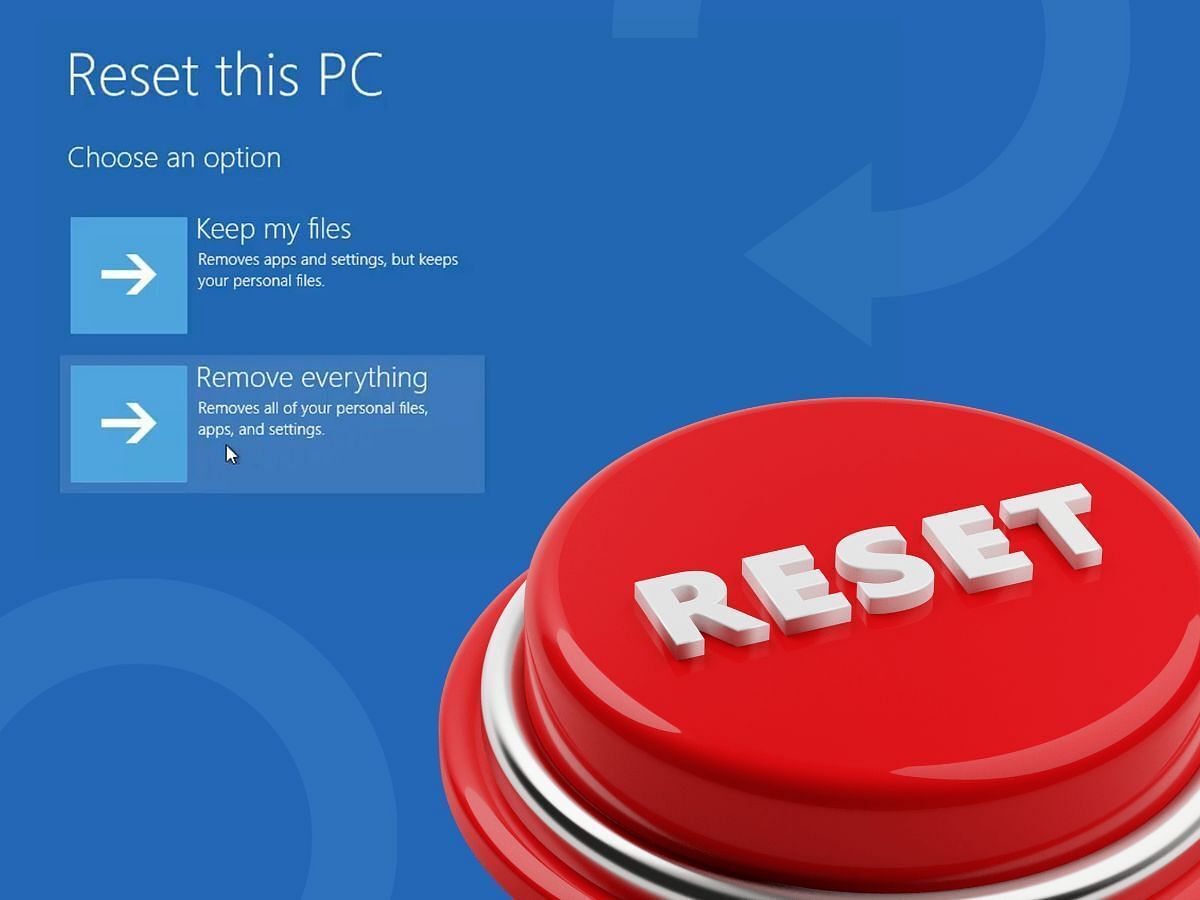
Resetting smart home devices can become more complex in multi-device or multi-network environments. Understanding the specific configuration of your smart home setup is crucial for a successful reset. This section will Artikel the procedures for resetting devices in various configurations, ensuring optimal functionality and troubleshooting.
Resetting Devices in a Multi-Device or Multi-Network Environment
Successfully resetting devices in a multi-device or multi-network environment requires careful consideration of the interconnectedness of your smart home components. A multi-device setup might involve multiple smart hubs, each managing a distinct group of devices. A multi-network environment could mean different Wi-Fi networks for different zones of your home. A well-defined reset strategy ensures that resetting one device does not disrupt the functionality of others.
Resetting Devices Connected to a Smart Home Hub
Resetting devices connected to a smart home hub often involves a two-step process. First, locate the reset button on the device itself or in the associated application. Second, use the smart home hub’s application to confirm the reset has completed successfully. This often involves re-pairing the device with the hub after the reset.For example, if a smart light bulb is connected to a Philips Hue hub, resetting the light bulb might involve pressing a physical reset button on the bulb, then re-adding the bulb to the Hue app through the hub.
Resetting Devices Connected to a Specific Wi-Fi Network
Resetting devices connected to a specific Wi-Fi network often involves disconnecting the device from the network and then reconnecting. This process varies slightly based on the device. Some devices may have a dedicated reset button, while others require a software reset through the device’s configuration menu. Before starting the reset process, ensure you have the necessary network credentials.For example, if a smart thermostat is connected to a guest network, disconnecting the thermostat from the network and reconnecting it with the guest network credentials is often necessary for a successful reset.
Comparing Reset Procedures for Different Smart Home Platforms
The following table summarizes the typical reset procedures for devices connected to different smart home platforms. Note that these are general guidelines; specific procedures may vary based on the device model.
| Smart Home Platform | Typical Reset Procedure |
|---|---|
| Alexa | Typically, devices connected to Alexa are reset through the Alexa app. Look for a reset option within the device’s settings in the app. Following the on-screen instructions is often sufficient. |
| Google Home | Devices connected to Google Home are usually reset through the Google Home app. Look for a reset option in the device’s settings. The app often guides you through the steps. |
| SmartThings | SmartThings devices usually require a reset through the SmartThings app. Identify the reset option within the app’s device settings. The reset process might involve physical steps, like pressing a button on the device. |
Maintaining Data During Resets
Properly backing up data before resetting smart home devices is crucial to avoid losing important information. This is especially vital for systems like security systems, where configuration settings and learned behaviors are critical to function. Careful planning and execution of backup procedures ensures minimal disruption and smooth device restoration.Maintaining data integrity during resets involves understanding the specific data retained or lost during various reset types.
This knowledge empowers users to make informed decisions about the need for backups and the restoration process. This section details the importance of backups and restoration, providing clear instructions for backing up critical data and restoring it after a reset.
Backing Up Important Data
Before initiating any reset, it is essential to back up the relevant data. This process varies depending on the device and the type of data it stores. For example, smart thermostats may only require backing up the preferred temperature settings, whereas a smart security system might need a backup of user accounts, access controls, and even recorded events.
Restoring Backed-Up Data
The restoration process is equally crucial. Carefully following the manufacturer’s instructions is essential to avoid errors. Restoring backed-up data ensures that the device is restored to its previous state, retaining all necessary settings and configurations. The method for restoration varies depending on the device and its backup mechanism.
Data Retention and Loss During Different Resets
Different types of resets have varying impacts on data retention. A factory reset, for example, typically erases all user-specific data, requiring a complete restoration from a backup. A soft reset, on the other hand, may retain some user settings. Understanding the specific reset type and its impact on data helps users make informed decisions about the backup process.
This is particularly important for smart home security systems, where user accounts, access controls, and recorded events must be carefully considered.
Step-by-Step Guide to Backing Up a Smart Security System
Backing up a smart security system requires careful attention to detail. This involves not only the device itself but also the associated data like recordings and user accounts.
- Identify Backup Method: Consult the manufacturer’s documentation to determine the recommended backup method for your specific system. Some systems may offer cloud-based backups, while others may require manual data extraction. This step ensures you are using the appropriate and most secure way to back up the data.
- Prepare Storage: Choose a secure and reliable storage location for the backup data. Consider cloud storage for redundancy or an external hard drive for offline backup. Ensure that this storage medium has sufficient capacity to hold the backup.
- Initiate Backup: Follow the manufacturer’s instructions to initiate the backup process. This might involve using a dedicated app or a specific command within the system’s interface. Pay close attention to the progress of the backup to ensure it completes successfully.
- Verify Backup: After the backup is complete, verify its integrity. Check that all the necessary data, including user accounts, access controls, and recorded events, have been successfully backed up.
Troubleshooting Reset Issues
Properly resetting smart home devices is crucial for maintaining a smooth and reliable operation. However, occasional issues can arise during the reset process. This section details common problems and their solutions, ensuring a successful reset for all your smart home components.
Common Reset Process Issues
Troubleshooting any reset problem starts with identifying the specific issue. Connection problems, device errors, and application errors are frequently encountered during reset procedures. Understanding the source of the problem is the first step towards a resolution.
Connection Problems
Network connectivity is fundamental to smart home device operation. Interruptions or inconsistencies in Wi-Fi or Ethernet connections can prevent devices from resetting correctly. Ensure a stable and reliable internet connection during the reset process. If using Ethernet, verify the cable’s integrity and proper connection. If using Wi-Fi, check for interference from other devices or obstructions.
If the problem persists, consult your internet service provider or network administrator.
Device Errors
Occasionally, the device itself may encounter internal errors during the reset procedure. These errors could manifest as unexpected shutdowns, boot loops, or display anomalies. If a device shows these signs, try the following steps: Unplug the device from the power source, wait for a few minutes, and then plug it back in. If the problem persists, check the device’s documentation for specific error codes and corresponding solutions.
Application Errors
Issues with the smart home application can also hinder the reset process. Application errors may include failure to detect the device, incorrect configuration prompts, or connectivity problems with the application server. Ensure the application is up-to-date. Restart the application and device. If the problem persists, check the application’s support resources for troubleshooting guidance or report the issue to the developer.
Resolving Conflicts Between Devices
After resetting individual devices, conflicts can arise between different smart home components. This might manifest as devices not communicating correctly, or incorrect settings being applied. To resolve these conflicts, check the configuration settings for each device. Ensure the devices are using compatible protocols and are not interfering with each other’s communication. A detailed review of each device’s settings, followed by a thorough restart of the devices and the application, can often resolve these issues.
Common Error Codes and Solutions
| Error Code | Description | Solution |
|---|---|---|
| ERR-001 | Failed to connect to the network | Verify network connection, restart router, check device’s network settings |
| ERR-002 | Device not recognized by application | Restart the application, update the application, ensure device is properly connected |
| ERR-003 | Incompatible configuration | Review configuration settings, update firmware if available, restart all devices and application |
Ensuring Device Security Post-Reset
Restoring your smart home devices after a reset is only half the battle. Equally crucial is implementing robust security measures to prevent unauthorized access and protect your personal data. This section Artikels essential steps for securing your devices following a reset.Proper security configurations are paramount to maintaining the safety and integrity of your smart home ecosystem. A compromised device can expose your entire network to potential threats, impacting your privacy and potentially leading to financial losses.
Secure Wi-Fi Settings and Passwords
Establishing a strong Wi-Fi network and assigning strong passwords for your smart home devices is fundamental. A weak password can be easily cracked, allowing unauthorized access to your devices and the network. Choose a password that is long, complex, and memorable, incorporating a mix of uppercase and lowercase letters, numbers, and symbols. Avoid using easily guessable information like birthdates or names.
Ensure that your Wi-Fi network itself is secured with a strong password. Review and update your Wi-Fi network security settings regularly.
Updating Device Firmware and Software
Regular firmware and software updates are critical for maintaining device security. These updates often include critical security patches that address vulnerabilities. Outdated devices are more susceptible to hacking attempts. Check for available updates regularly and install them promptly. Manufacturers often release updates to enhance functionality and address security flaws.
Consult the device manufacturer’s website for specific instructions and recommendations on updating firmware and software.
Changing Device Passwords
Changing default passwords to strong, unique passwords after a reset is essential. Default passwords are often publicly available, making your devices vulnerable to attacks. A compromised device can allow attackers to gain access to your entire network. Follow the device’s instructions to change the password. Create a list of your device passwords and store them securely in a password manager.
Best Practices for Securing Smart Home Devices Post-Reset
| Aspect | Best Practice |
|---|---|
| Wi-Fi Security | Use a strong, unique password for your Wi-Fi network and change it regularly. Enable WPA3 security if available. |
| Device Passwords | Immediately change the default password for each device to a strong, unique password. |
| Firmware/Software Updates | Actively monitor for and install firmware and software updates promptly. |
| Network Monitoring | Use a network monitoring tool to detect unusual activity and potential security breaches. |
| Device Management | Utilize device management applications to control and monitor connected devices. |
| Data Encryption | Enable data encryption features on supported devices whenever possible. |
Illustrative Examples
Resetting smart home devices is a crucial aspect of maintaining their functionality and security. Understanding the specific reset procedures for different devices is essential for troubleshooting issues and restoring optimal performance. This section provides detailed examples to illustrate the reset process for various smart home devices.This section will demonstrate different reset procedures for various smart home devices, using illustrations to clarify the steps involved.
It will also showcase a network diagram illustrating the configuration before and after a reset, highlighting the changes in the smart home system’s architecture.
Smart Light Reset
Smart lights often have multiple reset methods. A common reset involves holding down a physical button on the light fixture for a few seconds until the device’s LED indicator blinks a specific pattern. Alternatively, some smart light apps provide a “reset” option within the device settings. The app interface will typically guide users through the reset process with clear instructions and visual cues.
This often involves confirming the reset action and restarting the device.
Smart Lock Reset
Smart locks may require a physical button reset or a reset through the accompanying mobile application. A physical reset usually involves pressing and holding a specific button on the lock mechanism for a predefined duration. The mobile app reset typically involves navigating to the lock’s settings within the app and selecting the “reset” option. A confirmation dialog is often presented to verify the user’s intention.
Smart Plug Reset
Smart plugs frequently require a reset through the application interface. Users can access the plug’s settings in the app and find a “reset” or “factory reset” option. The app may guide the user through the reset process by displaying steps and visual prompts, confirming the user’s action.
Network Diagram Illustration
The following diagram illustrates a typical smart home network configuration before and after a reset.
| Component | Before Reset | After Reset |
|---|---|---|
| Smart Light | Connected to the smart home hub, receiving commands from the mobile application | Disconnected from the smart home hub; the mobile application needs to reconnect the device to the network. |
| Smart Lock | Connected to the smart home hub and accessible via the mobile application | Disconnected from the smart home hub; the mobile application needs to reconnect the device to the network. |
| Smart Plug | Connected to the smart home hub and controlled via the mobile application | Disconnected from the smart home hub; the mobile application needs to reconnect the device to the network. |
| Smart Home Hub | Acting as the central control point for all devices | Maintains its functionality as the central control point; it waits for the devices to reconnect. |
(Note: The diagram would visually depict the network connections before and after a reset. The diagram would show the hub, the devices, and the mobile app in different colours, indicating their connections or disconnections).
Visual Aids for Reset Procedures
(Visual aids would be included here. These would be detailed descriptions of the visual aids, showing the steps involved in resetting different device types, using screenshots of app interfaces and physical device buttons.)Example: A visual aid for resetting a smart light could show a screenshot of the smart light app with the “reset” option highlighted, along with a corresponding illustration of the physical button on the light fixture and the steps involved in pressing and holding it.
Conclusive Thoughts
In conclusion, resetting smart home devices effectively involves a thorough understanding of different reset types, common issues, and the importance of data management. By following the detailed procedures and troubleshooting tips Artikeld in this guide, you can confidently navigate the process of resetting your smart home devices, ensuring a seamless and secure smart home experience. This comprehensive approach equips you with the knowledge to maintain and optimize your smart home setup for years to come.