Smart devices have revolutionized our lives, offering seamless connectivity and automation. However, occasional offline issues can disrupt this convenience. This comprehensive guide provides a structured approach to troubleshooting offline smart devices, covering a wide range of potential causes, from simple network problems to complex hardware malfunctions. We’ll explore practical steps to diagnose and resolve connectivity problems, software glitches, and hardware failures, ensuring your smart devices remain connected and functional.
From verifying basic network connectivity to addressing device-specific issues and even performing resets, this guide offers a step-by-step troubleshooting process. We’ll delve into various scenarios, providing clear explanations and actionable solutions to help you resolve your offline problems quickly and effectively.
Identifying the Offline Issue
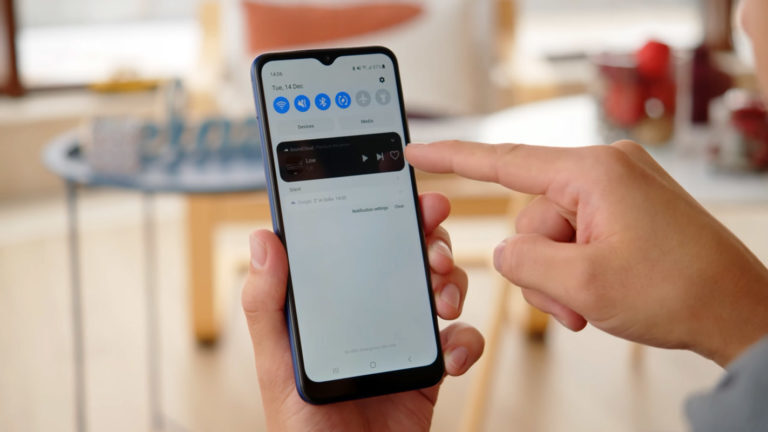
Smart devices, while offering convenience, can sometimes experience connectivity problems. Understanding the underlying reasons for an offline status is crucial for effective troubleshooting. This section details common causes and symptoms, enabling you to pinpoint the nature of the issue and initiate appropriate corrective actions.
Common Reasons for Offline Status
Pinpointing the cause of an offline smart device is often the first step in resolution. Various factors can lead to a device’s inability to connect, categorized broadly as hardware, software, or network problems.
- Hardware Issues: Physical damage, malfunctioning components, or insufficient power can lead to the device becoming offline. Examples include a faulty Wi-Fi adapter, a dead battery, or a damaged screen preventing input. These problems are often more difficult to resolve without professional assistance.
- Software Issues: Corrupted or outdated software, including operating system or application bugs, can cause the device to operate erratically or disconnect from the network. This can lead to unexpected behavior and a loss of connectivity. A faulty or incompatible app can also trigger offline status.
- Network Issues: Problems with the network itself, such as poor internet signal, router outages, or network congestion, can prevent a smart device from connecting to the network. Issues with the internet provider or interference from other devices can also be contributing factors.
Distinguishing Offline Problems
Recognizing the type of offline problem is essential for the correct troubleshooting steps. For instance, a device reporting “No internet connection” suggests a network issue, whereas a device displaying a “Device Error” message points to a software or hardware malfunction.
- Network Connectivity Problems: These issues are typically evident when the device cannot access the internet. Symptoms include the device not connecting to Wi-Fi, not responding to commands requiring internet access, or displaying a message indicating a network failure.
- Device Malfunctions: Hardware or software glitches can result in the device going offline. These problems are indicated by unusual behavior, such as frequent restarts, freezing, or showing unexpected error messages. Device malfunction can be further categorized into hardware-specific errors (e.g., display issues, input problems) and software-specific issues (e.g., application crashes, operating system errors).
Symptoms of an Offline Device
Various symptoms can indicate that a smart device is offline. These range from simple messages to more complex behaviors.
- Error Messages: Specific error messages provide clues to the source of the problem. For example, “Connection Failed” usually points to a network issue, while “App Not Responding” indicates a software problem. “Insufficient Storage” can signal a storage-related hardware problem.
- Unusual Behaviors: The device may exhibit unusual behavior, such as frequent restarts, failure to respond to commands, or displaying blank screens. Sudden loss of connectivity or unexpected disconnections from the network are also signs of a possible problem.
Offline Scenarios and Troubleshooting Table
The table below summarizes different offline scenarios, potential causes, and corresponding symptoms, alongside basic troubleshooting steps.
| Scenario | Potential Cause | Symptoms | Troubleshooting Steps |
|---|---|---|---|
| Device not connecting to Wi-Fi | Incorrect password, network issues, device driver problems | “Not connected” message, Wi-Fi icon with an X, no internet access | Check Wi-Fi password, restart router, update device drivers |
| Device freezes or crashes | Software glitches, insufficient memory, outdated drivers | Screen freezes, unresponsive controls, unexpected app crashes, device restarts | Force restart the device, update software, clear app cache |
| Device shows “No Internet Connection” | Network issues, poor signal, router problems | “No Internet Connection” message, inability to access online services | Check network cable, restart router, contact internet service provider |
Checking Basic Connectivity

Proper internet connectivity is fundamental for any smart device to function. Troubleshooting often begins with verifying the device’s connection to the network. A reliable internet connection is crucial for the device to receive updates, communicate with servers, and execute its intended tasks. This section details the steps to validate internet connectivity, the device’s network connection, and the strength of Wi-Fi or cellular signals.
Verifying Internet Connectivity
Establishing internet connectivity for a smart device often involves checking the internet connection on the local network. This involves checking if the device has access to online resources, such as web pages or specific applications. Ensure that the internet connection is stable and functional for all devices connected to the network. If the device’s internet connectivity is confirmed as functional, then the next steps should focus on the device’s network connection.
Checking Device Network Connection
This step involves confirming the device is properly connected to the local network. A device connected to the network should be able to access resources within the local network, such as file servers or printers. A network connection is vital for data transfer, and any issues here can lead to the device appearing offline. Testing the device’s network connection should be done independently of its internet connectivity.
Assessing Wi-Fi Signal Strength
The strength of a Wi-Fi signal directly impacts the device’s performance. A weak signal can lead to intermittent connectivity, slow response times, and even complete disconnections. To assess the signal strength, consider using tools built into the device or a network utility program. These tools often provide a visual representation of the signal strength, ranging from low to high.
Understanding the level of signal strength is essential in determining if the issue lies with the signal itself.
Assessing Cellular Signal Strength (for Cellular Devices)
Similar to Wi-Fi, cellular signal strength impacts the device’s ability to connect to the network. A weak cellular signal can result in dropped calls, slow data speeds, and difficulty connecting to the internet. Checking the cellular signal involves reviewing the signal strength indicators on the device itself. Tools to measure cellular signal strength often display signal bars, indicating the strength of the signal reception.
These readings should be correlated with the device’s performance to ascertain if the signal is the cause of the offline status.
Troubleshooting Connectivity Issues – A Structured Procedure
This procedure Artikels a systematic approach to address connectivity issues, starting with the simplest steps and escalating to more complex ones. Follow these steps in order to effectively troubleshoot your smart device’s offline issue:
- Verify the device’s power status, ensuring it is properly powered on and charged. Low battery levels can cause the device to appear offline.
- Check the device’s network connection, confirming that it is properly connected to the Wi-Fi or cellular network. A loose or disconnected connection will result in the device appearing offline.
- Assess the signal strength of the Wi-Fi or cellular network. A weak signal can hinder communication and cause connectivity issues. Ensure that the signal is strong enough to maintain a reliable connection.
- Test the internet connectivity by trying to access a website or application known to function correctly. This will help to determine if the problem lies with the device’s connection to the internet.
- Check for any network interference or obstacles that may be hindering the device’s connection. Physical obstructions or interference from other devices can affect the signal strength.
- If possible, restart the device and the router/modem. This often resolves temporary connectivity issues.
- Consult the device’s manual or online resources for specific troubleshooting steps or updates that may address the issue.
Troubleshooting Hardware Problems
Hardware issues can significantly impede a smart device’s functionality, leading to an offline state. Understanding potential hardware problems and their diagnostic methods is crucial for effective troubleshooting. This section details common hardware issues and how to rule them out as the cause of the offline problem.
Potential Hardware Issues
Various hardware problems can cause a smart device to become offline. These include, but are not limited to, issues with the battery, charging ports, internal components, and physical damage.
- Dead or Failing Battery: A depleted or failing battery can prevent the device from powering on or operating correctly, leading to an offline state. This is a common cause of unexpected shutdowns.
- Damaged Charging Ports: Physical damage to the charging port can prevent the device from receiving power, resulting in a non-functional device. This is often caused by improper handling or foreign objects entering the port.
- Faulty Internal Components: Internal components, such as the motherboard, processor, or memory, can malfunction, causing the device to become unresponsive or offline. This issue often necessitates professional repair.
- Physical Damage: External physical damage, such as cracks in the screen or damage to the casing, can disrupt internal circuits, leading to an offline state.
- Loose Connections: Loose connections within the device, such as those in the motherboard or internal components, can cause intermittent or permanent connectivity problems and an offline state.
Diagnosing Hardware Faults
A systematic approach is vital for diagnosing hardware faults. This involves a combination of visual inspection, testing, and exclusion.
- Visual Inspection: Begin by carefully examining the device for any visible signs of damage, such as cracks, dents, or loose components. Look for signs of physical damage to the charging port or any other noticeable physical issues.
- Battery Testing: Attempt to charge the device using a known-good charger and cable. If the device does not respond to charging, it indicates a possible battery or charging port issue. A multimeter can be used to measure the battery voltage to confirm the battery is within expected limits.
- Charging Port Assessment: Examine the charging port for any signs of damage, such as bent pins, debris, or corrosion. Using a clean cloth, gently clear any obstructions from the charging port. Test charging with a different charger or cable to rule out the charging port as the cause.
- Device Functionality Testing: Attempt to power on the device using the power button. If the device powers on but does not respond to commands, internal components or software might be problematic. Try performing simple actions such as checking the device’s time or date to rule out software-related problems.
Ruling Out Hardware Issues
Systematic checks can eliminate hardware issues as the source of the offline problem.
- Verify Charging: Ensure the device is properly connected to a reliable power source using a functioning charger and cable. If the device still does not respond to charging, the issue may be internal to the charging circuit.
- Test with a Different Cable and Charger: Employ a different, known-good charger and cable to confirm if the problem is with the original charging equipment. This eliminates the possibility of faulty chargers or cables.
- Inspect for Physical Damage: Thoroughly examine the device for any visible signs of damage. This includes the charging port, battery, and other critical components. This may reveal physical damage as the cause of the offline state.
- Consult Manufacturer Support: If the issue persists, contact the manufacturer’s support team for further guidance and assistance. This can help resolve complex hardware problems that require specialized expertise.
Addressing Software Issues
Troubleshooting a smart device’s software issues can often resolve offline problems that hardware or connectivity issues haven’t addressed. Understanding the potential software problems and their solutions is crucial for restoring functionality. Careful diagnosis and methodical resolution are key to a successful outcome.
Potential Software Issues
Software glitches can manifest in various ways, leading to a device going offline. These problems range from corrupted application data to outdated firmware. Identifying the specific software issue is the first step toward resolving the problem.
- Outdated Firmware: Firmware updates often include bug fixes and performance improvements. A device with outdated firmware might experience instability, leading to intermittent or permanent offline status.
- Corrupted Application Data: Applications can become corrupted due to various reasons, including system crashes or improper shutdowns. This corruption can prevent the application from functioning correctly, potentially causing the device to go offline.
- Incompatible Applications: Software updates or changes to the operating system can create incompatibility issues with certain applications, leading to the device going offline or exhibiting unexpected behavior.
- Operating System Errors: The operating system itself might contain bugs or errors that disrupt the device’s functionality, resulting in an offline state.
- Insufficient Storage Space: Lack of sufficient storage space can hinder the device’s ability to function optimally. This can manifest as the device becoming offline.
Diagnosing Software Faults
Diagnosing software issues requires a systematic approach. Observing the device’s behavior, checking for error messages, and examining recent software updates can provide valuable insights.
- Observe Device Behavior: Carefully monitor the device’s behavior for any unusual patterns, like slowdowns, unexpected shutdowns, or persistent error messages. Note any occurrences of the device going offline.
- Review Error Messages: If the device displays error messages, carefully examine them for clues about the specific software issue. These messages often contain helpful hints about the cause of the problem.
- Check Recent Updates: Verify that the device has successfully completed recent firmware or application updates. Outdated software is a common cause of issues, and checking recent updates helps determine if this is the case.
Common Software Problems and Solutions
Troubleshooting software problems involves understanding the root cause and implementing appropriate solutions. This includes updating firmware or reinstalling applications.
| Error | Cause | Solution |
|---|---|---|
| App error | Corrupted app data, incompatibility | Uninstall and reinstall the app. Ensure the app is compatible with the current operating system version. |
| Firmware update failure | Corrupted firmware update file, insufficient storage | Attempt the update again, ensuring sufficient storage space on the device. If the problem persists, consult the manufacturer’s support resources. |
| Operating system error | Operating system bug or conflict | Check for available operating system updates and install them. If the issue persists, consider performing a factory reset as a last resort, but back up data beforehand. |
| Insufficient storage | Lack of storage space | Free up storage space by deleting unnecessary files or applications. |
Updating Firmware
Updating firmware involves downloading and installing the latest version of the device’s software. Following the manufacturer’s instructions is critical to avoid complications.
- Check for Updates: Access the device’s settings to check for available firmware updates. These updates may be available via a dedicated application or through the device’s operating system.
- Download Update: Download the firmware update file, ensuring it is compatible with the device’s model and version.
- Install Update: Follow the manufacturer’s instructions for installing the firmware update. This often involves specific procedures for safely updating the device’s software.
Reinstalling Applications
Reinstalling applications is a common solution for addressing issues with corrupted or incompatible applications. Follow these steps to reinstall an application:
- Uninstall Application: Use the device’s settings to uninstall the problematic application.
- Download Application: Download the application from the appropriate app store or the manufacturer’s website.
- Install Application: Follow the on-screen instructions to install the application.
Managing Network Configurations
Proper network configurations are crucial for the seamless operation of smart devices. Incorrect settings can lead to connectivity issues, hindering functionality and potentially causing frustration. Understanding how to configure and troubleshoot network settings is vital for resolving offline problems effectively.Accurate network settings ensure consistent communication between the smart device and the network infrastructure. This includes the correct Wi-Fi or cellular network identification, password, and other relevant parameters.
Troubleshooting these settings is often the first step in restoring connectivity.
Importance of Correct Network Settings
Correct network settings are essential for smart devices to function correctly. These settings allow the device to connect to the network and access necessary resources. Without proper configuration, the device may not be able to communicate with the network, resulting in an offline state. This is particularly important for devices relying on constant connectivity, such as smart home appliances or wearable devices.
Methods for Configuring Wi-Fi or Cellular Network Settings
Configuring Wi-Fi or cellular network settings involves several steps, depending on the specific device and operating system. For Wi-Fi, locate the Wi-Fi settings within the device’s menu. This typically involves selecting the desired network from the available list and entering the password. Cellular network settings often require manual configuration of the APN (Access Point Name) and other parameters.
Refer to the device’s user manual for specific instructions.
Identifying and Fixing Network Configuration Issues
Troubleshooting network configuration problems requires a systematic approach. Start by verifying the network’s accessibility and availability. Ensure the router or cellular network is functioning correctly. Next, check the device’s network settings to ensure they match the network’s parameters. Incorrect passwords, missing settings, or incompatible protocols are common causes of connectivity issues.
Check for any recent software updates that might have affected network configurations.
Troubleshooting Common Network Settings Problems
Several issues can arise with network settings. A common problem is incorrect Wi-Fi passwords. Double-check the password entered in the device’s settings against the router’s configuration. Another frequent problem involves incompatible network protocols. Ensure that the device’s settings align with the network’s protocols.
Issues with cellular connections can arise from incorrect APN settings or insufficient cellular data coverage. Verify the APN settings and ensure adequate cellular data is available.
Examples of Correct Network Configurations for Different Smart Devices
Network configurations vary based on the device type. For a smart speaker, the correct Wi-Fi network name and password must be entered in the device’s settings. Similarly, a smart thermostat might require specific network settings to communicate with the home automation system. For a smart phone, correct cellular network settings, including the APN, are crucial for data access and connectivity.
A smart watch might need both Wi-Fi and Bluetooth settings to connect to a phone and other devices.
Device-Specific Troubleshooting
Troubleshooting smart devices requires a tailored approach, as each device type and model might present unique challenges. This section delves into device-specific strategies for resolving offline issues, offering a range of practical steps for various smart device categories.
Smart Speaker Troubleshooting
Smart speakers often experience connectivity problems due to Wi-Fi instability or firmware glitches. Addressing these issues effectively requires a systematic approach.
- Verify Wi-Fi Connection: Ensure the smart speaker is connected to a stable and strong Wi-Fi network. Check the router’s signal strength and identify any potential interference sources. Verify the correct Wi-Fi password is entered.
- Restart the Device: A simple device restart can often resolve temporary glitches. Follow the manufacturer’s instructions for safely powering off and back on the smart speaker. Allow sufficient time for the device to fully restart.
- Update Firmware: Regular firmware updates frequently include bug fixes and performance improvements that can address offline issues. Check the manufacturer’s website or app for available updates and follow the prompts to install them.
- Check for Network Interference: Identify and mitigate potential sources of network interference, such as other Wi-Fi devices or electronic appliances operating in close proximity to the speaker.
- Contact Support: If the issue persists after implementing the above steps, consult the manufacturer’s support resources. Detailed descriptions of the problem, including model number and error messages, will be helpful.
Smart TV Troubleshooting
Smart TVs, often featuring complex operating systems, can experience offline problems due to various factors.
- Check Network Connection: Ensure a stable internet connection is available. Verify the cable connection to the modem and router, and confirm that the TV is properly connected to the network.
- Restart the Device: Restarting the TV can resolve temporary glitches or software conflicts. Follow the TV’s power-off procedure.
- Update Software: Software updates are essential for optimizing performance and fixing potential bugs that might cause offline issues. Check for and install available updates.
- Verify Network Settings: Ensure the correct network settings are configured on the TV, such as Wi-Fi passwords and other network parameters. Double-check the TV’s network configuration settings.
- Check for Device Conflicts: Identify and resolve potential conflicts with other devices on the network, like streaming services or other smart home devices. If possible, disconnect any suspected devices to isolate the issue.
Smartwatch Troubleshooting
Smartwatches, with their dependence on mobile devices, can face connectivity problems.
- Check Bluetooth Connection: Confirm that the Bluetooth connection between the smartwatch and the paired mobile device is stable. Ensure both devices are within range and that the Bluetooth function is enabled on both.
- Restart the Devices: Restarting both the smartwatch and the paired mobile device can resolve temporary glitches. Follow the manufacturer’s instructions for both devices.
- Update Firmware: Check for and install available firmware updates for both the smartwatch and the paired mobile device. Updates often address connectivity issues.
- Ensure Mobile Device Connectivity: Confirm that the mobile device has a stable data connection or Wi-Fi. Check for mobile data usage limits or internet outages.
- Contact Support: Consult manufacturer support resources if the issue persists after the previous steps.
Device-Specific Models
Different models of smart devices may require specific troubleshooting procedures. Refer to the manufacturer’s documentation or support website for model-specific guidance. This often includes detailed instructions on how to perform hardware resets or navigate the device’s menu to identify and correct specific problems. For instance, the troubleshooting steps for a specific smart speaker model might differ from another model of the same brand.
Resetting the Device
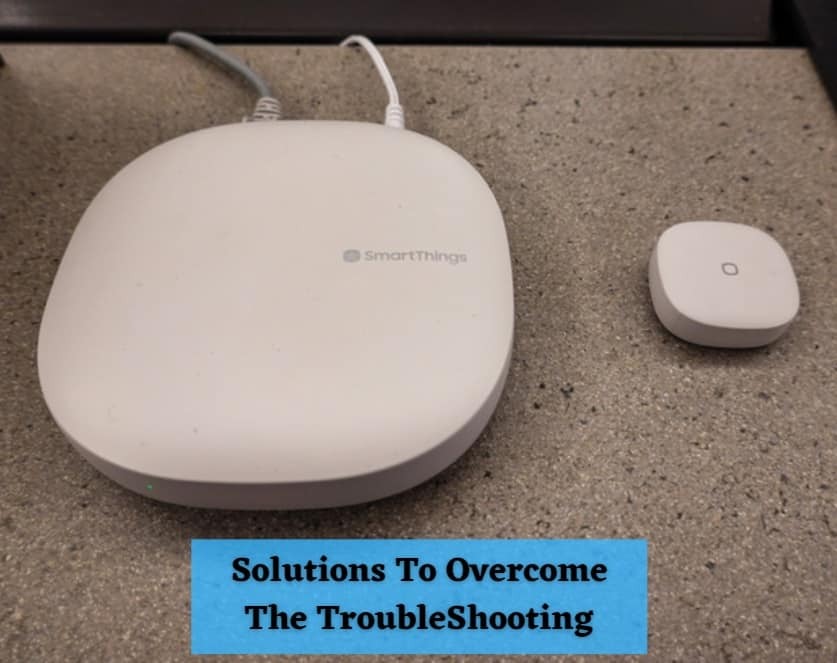
A smart device, like any complex system, can sometimes encounter issues that require a reset. A reset can resolve various problems, from minor glitches to more significant malfunctions. Understanding the different types of resets and their implications is crucial for effectively troubleshooting and restoring functionality.
Types of Resets
Different types of resets offer varying levels of intervention. Choosing the appropriate reset method depends on the nature of the problem. A soft reset, for instance, is a less drastic action, while a factory reset is a more comprehensive solution.
- Soft Reset: A soft reset is a basic restart of the device, often achieved by holding down specific buttons. This typically resolves minor software glitches or temporary malfunctions without losing any user data. For example, if your smartphone is unresponsive, a soft reset might restore its functionality.
- Hard Reset: A hard reset is a more aggressive method that typically involves holding down specific buttons for a longer period, sometimes accompanied by other actions. It often clears temporary files and caches, potentially resolving issues stemming from these temporary data. This approach may retain user data, but it is less certain than a soft reset.
- Factory Reset: A factory reset is the most extensive form of reset. It restores the device to its original factory settings, effectively erasing all user data and applications. This is the most thorough approach and can resolve a wider range of issues, but it requires a user to acknowledge the potential loss of data.
Factory Reset Procedure
A factory reset is a critical step for devices experiencing persistent issues, but it should only be undertaken after a thorough assessment and a full understanding of the potential data loss. This step is essential to restore the device to its original functionality. Carefully following the specific instructions for your device is crucial to ensure success and avoid further complications.
| Step | Action |
|---|---|
| 1 | Backup Data: Before initiating the reset, back up any important data from the device to a secure location. This could include photos, videos, documents, contacts, and other files. Cloud storage services or external drives are recommended. |
| 2 | Identify Reset Method: Locate the instructions specific to your device model for initiating a factory reset. This is typically found in the device’s settings menu. |
| 3 | Follow Instructions: Carefully follow the steps Artikeld in the device’s instructions. This usually involves navigating to a specific menu option, selecting “Reset,” and confirming the action. |
| 4 | Confirmation: The device will typically prompt for confirmation. Carefully review the implications before proceeding. |
| 5 | Completion: The device will reboot and may take several minutes to complete the reset process. Be patient during this phase. |
| 6 | Setup: Once the device restarts, it will guide you through the initial setup process. During this phase, re-download necessary apps and restore data from the backup. |
Implications of Resetting
Resetting a smart device can have significant implications, primarily concerning data loss. A soft reset typically preserves all user data. A hard reset may retain some user data, but there’s no guarantee. A factory reset, however, will erase all user data and applications, potentially requiring significant time and effort to restore. Understanding the trade-offs is crucial before choosing a reset method.
For example, if a phone is experiencing frequent crashes, a factory reset might be the only viable solution, even if it means re-installing apps and restoring data.
Seeking Support
Troubleshooting a smart device that’s offline can be a frustrating experience. Fortunately, numerous resources are available to guide you through the process and resolve the issue effectively. This section Artikels the avenues for seeking support, ranging from manufacturer-provided assistance to online communities.
Identifying Support Resources
Various avenues are available for assistance with smart device troubleshooting. Understanding the different support options and how to access them can significantly streamline the process.
Contacting Customer Support
Manufacturers often offer dedicated customer support channels for troubleshooting device issues. These channels may include phone numbers, email addresses, and online support portals. Finding this information is usually straightforward, often located on the manufacturer’s website. For example, many electronics companies maintain detailed support pages with contact details for specific models. A clear understanding of the device’s model number is critical when contacting support.
Leveraging Online Communities
Online forums and communities dedicated to specific smart device brands or types can be invaluable. These platforms provide a wealth of user-generated troubleshooting advice, experiences, and solutions. They also allow you to interact with other users facing similar issues, potentially finding a solution that worked for someone else. Examples include dedicated forums for Apple products, Android devices, or specific smart home ecosystems.
These communities are valuable resources for obtaining real-world insights and practical solutions.
Specific Device Support Options
Different smart devices have varying support options. For instance, smartwatches might offer dedicated support apps, while smart speakers might provide online FAQs and troubleshooting videos. Smart home hubs may feature extensive documentation on their websites, with comprehensive FAQs and tutorials. Carefully examining the manufacturer’s website for the specific device is key to finding the most appropriate support channel.
Thorough research into the device’s manual or user guide often leads to quick resolutions.
Examples of Support Resources
Numerous online resources are available to guide users through troubleshooting smart devices. These include the manufacturer’s website, official support forums, and user-generated online communities. A few examples include the Apple Support website, the Google Support website, and dedicated forums on Reddit or online communities specific to a particular smart home device. Utilizing these resources often provides a variety of perspectives and solutions for offline device issues.
Closing Summary
In conclusion, troubleshooting an offline smart device involves a systematic approach encompassing various aspects. By understanding potential causes like network issues, hardware malfunctions, or software glitches, and following the detailed steps Artikeld in this guide, you can effectively resolve connectivity problems and get your smart device back online. Remember, a well-defined problem-solving strategy is key to achieving optimal results.
This guide provides a robust framework for future troubleshooting efforts.