Pet owners often desire a watchful eye over their furry companions while they are away. Indoor pet cameras offer a convenient solution, allowing you to monitor your pet’s well-being and activities from anywhere. This guide provides a detailed overview of setting up these cameras, from initial setup to advanced features, enabling you to choose the right camera and ensure smooth operation.
This comprehensive guide covers all aspects of setting up pet monitoring cameras, from selecting the appropriate model and installing the hardware to configuring the software and optimizing camera placement. We will explore the different types of cameras available, their key features, and their potential drawbacks. Detailed instructions and troubleshooting tips will be included to ensure a smooth setup process.
Introduction to Pet Monitoring Cameras
Indoor pet cameras offer a wealth of benefits for pet owners, allowing for peace of mind and enhanced interaction with their furry friends. These devices provide a real-time visual connection, enabling owners to check on their pets’ well-being while they are away. From monitoring activity levels to ensuring safety and preventing potential issues, these cameras can be invaluable tools for responsible pet ownership.Pet monitoring cameras come in various types, catering to diverse needs and preferences.
Understanding the available options allows pet owners to select the camera that best suits their specific requirements and budget.
Types of Indoor Pet Cameras
A range of indoor pet cameras is available, each with unique characteristics. The key distinctions lie in their connectivity, features, and capabilities.
- Wired Cameras: These cameras offer a stable and reliable connection via a physical cable, ensuring uninterrupted video feed. They often provide high-quality video and audio, and are less susceptible to interference than wireless options. However, the physical connection can limit the camera’s placement flexibility.
- Wireless Cameras: Wireless cameras offer greater freedom in positioning, allowing placement anywhere within the home’s interior without the constraint of wires. They usually rely on Wi-Fi or other wireless technologies, which may experience interference or signal loss depending on the environment and device’s capabilities.
- Smart Cameras: These cameras incorporate advanced features like motion detection, two-way audio, and often integrate with smart home systems. They usually provide a more sophisticated and user-friendly experience, often offering remote access and control through dedicated apps. They are generally more expensive than basic wired or wireless models, but their comprehensive features can enhance pet monitoring.
Key Features to Look For
Several crucial features contribute to the effectiveness and value of a pet camera. These attributes directly impact the pet owner’s experience and the level of monitoring they can achieve.
- Motion Detection: This feature automatically alerts the user when unusual movement is detected, providing a crucial tool for monitoring activity and identifying potential problems or emergencies. This can be particularly useful for pets who tend to wander or engage in disruptive behaviours.
- Night Vision: Night vision capabilities are essential for monitoring pets in low-light conditions, allowing visibility even when it’s dark. This is important for keeping track of your pets during nighttime hours.
- Two-Way Audio: Two-way audio facilitates communication between the user and the pet. This allows for interaction and reassurance, enhancing the bond between owner and pet.
Comparison of Camera Brands and Models
Different brands and models of indoor pet cameras offer various combinations of features and functionalities. The following table provides a comparison of three popular options, highlighting their strengths and weaknesses.
| Camera Type | Brand/Model | Features | Price (USD) | User Reviews |
|---|---|---|---|---|
| Wired | PetSafe Premium | High-quality video, reliable connection, simple setup | $120 | Generally positive, highlighting the robust build and clear video |
| Wireless | Arlo Pro 4 | Excellent image quality, motion detection, smart features, app integration | $200 | High user ratings for ease of use and comprehensive features |
| Smart | Wyze Cam v3 | Affordable option with decent image quality, good motion detection, two-way audio | $60 | Mixed reviews, some users praise the value, while others report occasional issues with image quality or reliability |
Setting Up the Camera Hardware
Setting up indoor pet monitoring cameras involves several crucial steps, from unboxing and installation to connecting to your home network and the internet. Proper setup ensures seamless functionality and reliable pet monitoring. A well-configured system will provide clear video feeds and consistent notifications, allowing you to observe your furry friends comfortably and conveniently.
Unboxing and Initial Setup
The initial unboxing and setup process for indoor pet cameras varies depending on the specific model. Generally, the package will contain the camera unit, power adapter, mounting accessories (e.g., adhesive mounts, screws, brackets), and a quick-start guide. Carefully unpack all components and inspect them for any damage. Ensure that all components are present before proceeding with installation.
Hardware Requirements
A few key hardware items are essential for setting up and using your pet monitoring camera. These include a power adapter, which converts AC power to the camera’s required DC voltage. Mounting accessories, such as adhesive mounts or brackets, are necessary for securely positioning the camera. The camera’s specifications will Artikel the required power adapter voltage and amperage.
Connecting to Your Home Wi-Fi Network
Connecting the camera to your home Wi-Fi network is crucial for remote access and monitoring. The process typically involves the following steps:
- Locate the camera’s Wi-Fi settings. This is usually found on the camera’s physical device or within the camera’s mobile application.
- Select your home Wi-Fi network from the list of available networks.
- Enter your Wi-Fi password.
- Allow the camera to connect to your network.
Properly configuring the Wi-Fi connection is vital for enabling remote access and notification features.
Connecting the Camera to the Internet
Connecting the camera to the internet enables remote access and monitoring from any location with an internet connection. Most pet cameras connect to the internet through your home Wi-Fi network. The camera’s mobile application or user manual will provide detailed instructions on the connection process.
Hardware Requirements Table
The following table Artikels the typical hardware requirements for different camera models. Note that specific requirements may vary depending on the manufacturer and model.
| Camera Model | Power Adapter (Voltage/Amperage) | Mounting Accessories | Wi-Fi Compatibility |
|---|---|---|---|
| PetCam Pro | 12V/1A | Wall mount, adhesive mount | 802.11a/b/g/n/ac |
| SmartView HD | 5V/2A | Desk mount, ceiling mount | 802.11b/g/n |
| Paw Patrol Cam | 9V/0.5A | Ceiling mount, suction cup mount | 802.11a/b/g/n |
Configuring the Camera Software

Setting up the camera software is a crucial step in ensuring smooth pet monitoring. Proper configuration allows for optimized functionality, enabling features like motion detection, recording, and two-way audio. This section details the essential steps to effectively configure your chosen camera’s mobile application.
Downloading and Installing the Mobile App
Downloading and installing the camera’s mobile app is the first step in accessing and controlling your pet camera. This typically involves locating the app in your mobile device’s app store (e.g., Google Play Store or Apple App Store) and then completing the installation process. Ensure that the app you download corresponds to the specific camera model you are using to avoid compatibility issues.
Creating an Account and Logging In
After installing the app, you need to create an account and log in. This process usually involves providing necessary information, such as an email address and password. Creating a secure password and storing it in a secure location is vital to protect your account from unauthorized access. Upon successful account creation, you can log in using your credentials.
Configuring Camera Settings
Configuring the camera’s settings allows you to personalize the monitoring experience. Common settings include motion detection zones, recording preferences, and notification settings. Adjusting these settings ensures that you receive alerts when needed and that recordings are captured appropriately.
Adjusting Camera Resolution and Frame Rate
Adjusting the camera’s resolution and frame rate directly impacts the quality of the video feed. Higher resolution provides a more detailed image, while a higher frame rate results in smoother video playback. However, higher settings may consume more bandwidth and storage. Consider the available bandwidth and storage capacity when making adjustments.
Setting Up Two-Way Audio and Notifications
Two-way audio and notifications are essential features for interaction and alerts. Setting up two-way audio allows you to communicate with your pet, while notifications ensure you are alerted when motion is detected or other events occur. These settings are crucial for active monitoring and responsiveness.
Basic App Setup and Configuration Table
This table provides a general guideline for basic app setup and configuration for a typical pet camera model.
| Step | Action | Description |
|---|---|---|
| 1 | Download the app | Locate and download the app from your device’s app store. |
| 2 | Create an account | Provide necessary information and create a secure password. |
| 3 | Log in to the app | Use your credentials to access the app. |
| 4 | Configure motion detection | Define areas where motion triggers alerts. |
| 5 | Set recording preferences | Choose recording duration, frequency, and storage location. |
| 6 | Adjust resolution and frame rate | Select the optimal balance between image quality and bandwidth usage. |
| 7 | Enable two-way audio | Activate the audio function for communication. |
| 8 | Configure notifications | Customize alerts based on motion or other events. |
Optimizing Camera Placement and Viewing Angles
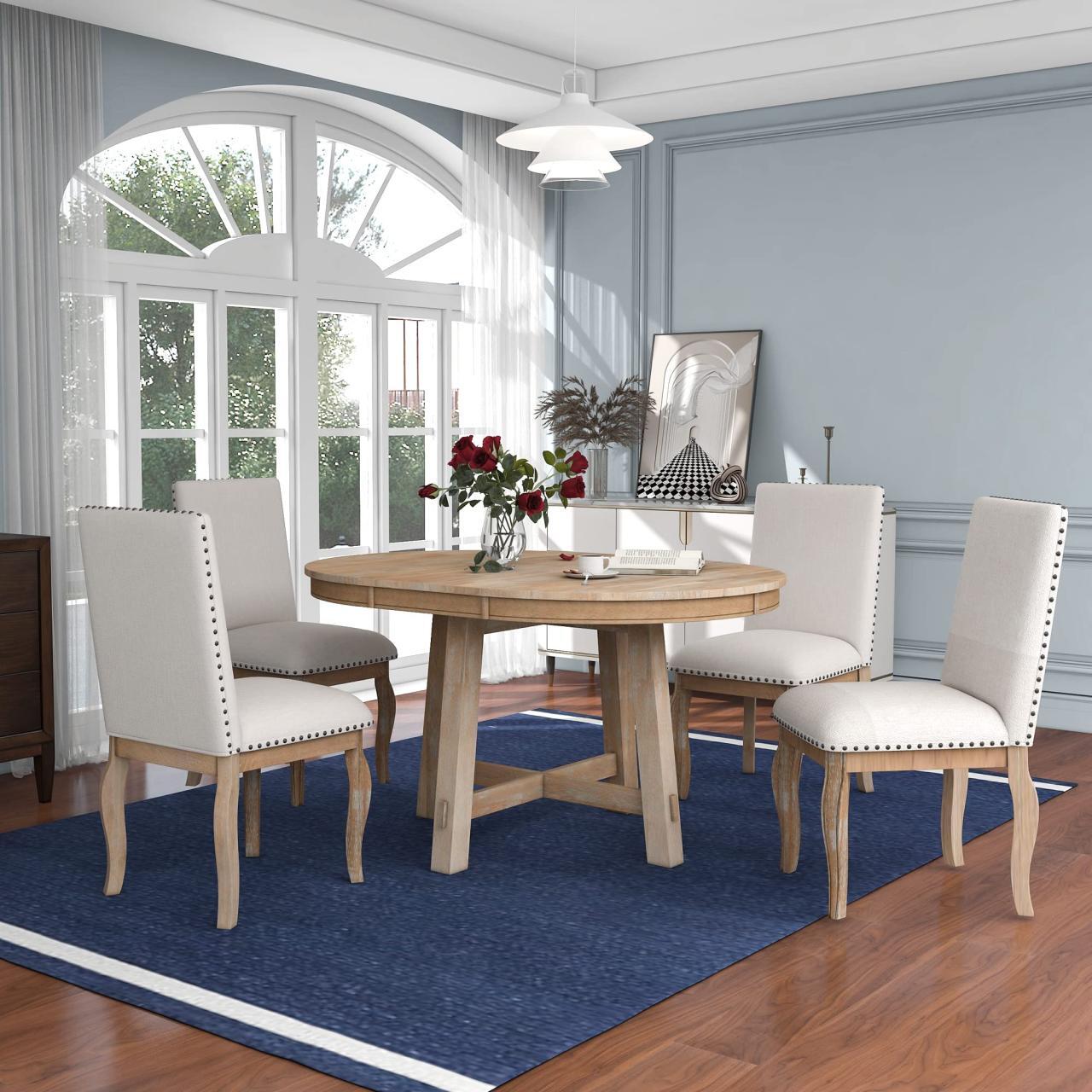
Proper camera placement is crucial for effective pet monitoring. A strategically positioned camera ensures clear visibility of your pet’s activities, allowing you to observe their behavior and well-being remotely. Careful consideration of the camera’s field of view and potential obstructions is vital for achieving comprehensive monitoring.Effective camera placement and angle adjustments directly impact the quality of pet monitoring.
By maximizing the camera’s field of view and mitigating obstructions, you can ensure a clear and comprehensive view of your pet’s environment, promoting peace of mind and enabling responsive care.
Ideal Locations for Indoor Pet Cameras
Optimal camera placement significantly enhances monitoring effectiveness. Consider high vantage points, allowing a wide perspective of the area. Strategic locations should offer unobstructed views of key activity zones, such as feeding areas, play areas, and sleeping zones. Placing cameras near windows can provide a view of the outdoors, useful for observing interaction with the environment.
Maximizing the Camera’s Field of View
To ensure comprehensive monitoring, leverage the camera’s field of view. Wide-angle lenses are beneficial for capturing more of the monitored space. Position the camera so that it encompasses the most important areas, maximizing visibility of your pet’s movements and activities.
Identifying and Overcoming Potential Obstructions
Obstructions can significantly impact the camera’s effectiveness. Potential obstructions include furniture, plants, or even pets themselves. Strategically positioning the camera to avoid these obstructions, or adjusting the camera’s angle, is crucial for maintaining clear visibility. Using a tripod or mounting the camera on a wall or ceiling may help overcome some obstructions.
Adjusting the Camera’s Angle for Optimal Viewing
Precise angle adjustment is essential for optimal viewing. Experiment with different angles to capture the best perspective of the monitored area. Consider the camera’s zoom capabilities and adjust accordingly to focus on specific areas or maintain a wide-angle view of the room.
Example Room Layout with Suggested Camera Placement
Consider a living room with a sofa, a coffee table, and a pet bed. Place the camera on a high shelf above the sofa, angled slightly downward to cover the entire area, including the pet bed and the space around the coffee table. Adjust the angle to ensure the pet bed and feeding area are clearly visible. Ensure the camera is not obstructed by the furniture.
Common Placement Challenges and Solutions for Different Room Types
| Room Type | Common Placement Challenges | Solutions |
|---|---|---|
| Living Room | Furniture, plants, and pets can block views. | Position the camera on a high shelf, or use a wall mount to minimize obstructions. Experiment with different angles to overcome obstructions. |
| Bedroom | Limited space, bed placement, and lack of high vantage points. | Consider a wall-mounted camera or a ceiling mount. Adjust the angle to capture the pet’s sleeping area, feeding area, and movement within the room. |
| Kitchen | Movement of people and appliances, clutter, and limited space. | Position the camera on a high cabinet or wall mount to minimize clutter and movement interference. Adjust the angle to focus on the feeding area, the pet’s activity zone, and minimize any obstructions. |
Utilizing Camera Features for Enhanced Monitoring

Leveraging the features of indoor pet monitoring cameras can significantly improve your pet’s well-being and your peace of mind. These features allow you to proactively address potential issues and stay connected with your furry friend, even when you’re away. This section delves into the practical application of various camera functionalities.
Motion Detection for Alerts
Motion detection is a crucial feature for proactive pet monitoring. It automatically alerts you to any unusual movement within the camera’s field of view. This feature is particularly valuable for detecting potential issues, such as a pet getting into mischief or experiencing distress. Properly configured motion detection settings are essential for minimizing false alarms. For example, if you have a busy household, you may need to adjust the sensitivity of the motion sensor to prevent unnecessary notifications.
Two-Way Audio for Communication
Two-way audio allows for direct communication with your pet. This feature enables you to interact with your pet, providing comfort and reassurance. You can also use it to provide verbal cues or commands, aiding in training or addressing potential behavioral concerns. For example, a gentle “good boy” or “good girl” can boost your pet’s morale and reinforce positive behavior.
Scheduling Recordings for Review
Scheduled recordings allow you to capture specific timeframes of activity. This is particularly useful for reviewing pet behavior or identifying patterns. Setting up a recording schedule can provide valuable insights into your pet’s daily routine and allow you to detect any unusual changes or behaviors. For example, you might schedule a recording session to capture your pet’s activity during the night, allowing you to review for potential disturbances.
Night Vision Capabilities
Night vision capabilities are essential for monitoring your pet in low-light conditions. This feature ensures you can see your pet clearly even in the dark, providing peace of mind and preventing accidental disturbances. The quality and range of night vision vary among different camera models, so understanding the camera’s specifications is crucial for optimal performance. Consider the camera’s night vision range when choosing a location for the camera.
Zoom Function for Detailed Views
The zoom function allows for closer views of your pet. This is helpful for observing details such as your pet’s expressions or potential health issues. It’s vital to understand the zoom capabilities of your camera and its impact on image quality. For instance, if you need to observe your pet’s reaction to a particular situation, a strong zoom feature can be valuable.
Example Camera Features – “PetCam Pro 500”
The following table details the features and functions of the “PetCam Pro 500” model.
| Feature | Function |
|---|---|
| Motion Detection | Alerts user to any movement within the camera’s field of view. |
| Two-Way Audio | Enables direct communication with the pet. |
| Scheduled Recording | Captures activity during specific timeframes. |
| Night Vision | Provides clear visibility in low-light conditions. |
| Zoom Function | Allows for closer views of the pet. |
Troubleshooting Common Issues

Ensuring your indoor pet camera system functions smoothly is crucial for uninterrupted monitoring. Troubleshooting common problems is an essential part of maintaining a reliable pet camera setup. This section provides solutions to address potential issues, allowing you to maintain a clear view and reliable recording of your furry friend.Addressing issues promptly will prevent frustration and ensure your peace of mind.
Knowing how to identify and resolve problems will save time and effort in the long run.
Connection Issues
Connection problems are a common hurdle in pet camera setups. These issues can stem from various factors, including weak Wi-Fi signals, network interference, or camera software glitches. Understanding the underlying cause is key to finding a solution.
- Weak Wi-Fi Signals: A weak Wi-Fi signal can severely impact the camera’s connection stability. Ensure the camera is positioned within the optimal range of your Wi-Fi router for a strong signal. Consider using Wi-Fi extenders or powerline adapters to improve signal strength in areas with poor reception.
- Network Interference: Other electronic devices operating on the same Wi-Fi network can interfere with the camera’s connection. Try temporarily turning off other devices to isolate potential interference sources.
- Camera Software Glitches: Occasionally, camera software may experience glitches, resulting in connectivity problems. Restarting both the camera and your device, or reinstalling the camera app, often resolves these issues.
Image Quality Issues
Maintaining clear and sharp images is critical for effective pet monitoring. Several factors can impact image quality, including lighting conditions, camera resolution, and video compression settings.
- Lighting Conditions: Insufficient or overly bright lighting can significantly degrade image quality. Ensure adequate lighting in the monitored area for optimal visibility. Consider using additional lighting fixtures if necessary.
- Camera Resolution: The camera’s resolution directly impacts image clarity. Cameras with higher resolutions produce sharper images. If possible, select a camera with a resolution that suits your needs and viewing distance.
- Video Compression Settings: High video compression can lead to reduced image quality. Adjusting the video compression settings to a lower level can sometimes improve the visual quality but may impact the recording file size.
Motion Detection Issues
Motion detection is a core feature of pet cameras. However, sometimes the system might fail to detect or incorrectly detect movement.
- False Positives: Motion detection might trigger frequently on non-pet movement (e.g., swaying plants, passing cars). Adjust the motion detection sensitivity to reduce false alarms. Consider using a wider detection area for more accurate detection of your pet’s movements.
- No Motion Detection: The camera might not detect any movement at all. Check the camera’s field of view to ensure the subject is within the detection zone. Also, ensure the motion detection settings are properly configured and activated.
Recording Issues
Reliable recording is essential for reviewing pet activity. Issues with recording can arise from various sources.
- Storage Issues: Insufficient storage space on the recording device (e.g., microSD card) can lead to recording errors. Ensure that there is sufficient storage space available. Consider using a larger capacity storage device.
- Recording Frequency: If the camera is not recording frequently enough, you may miss crucial moments. Adjust the recording frequency settings to a higher rate, if needed.
- Recording Format Issues: The camera might not be compatible with the selected recording format. Ensure the recording format is compatible with the device you are using for playback.
Troubleshooting Table
| Problem | Possible Solution |
|---|---|
| Weak Wi-Fi signal | Move camera closer to router, use Wi-Fi extender, check for network interference. |
| Poor image quality | Adjust lighting, increase camera resolution, adjust video compression settings. |
| Motion detection issues | Adjust sensitivity, widen detection area, check for false positives. |
| Recording problems | Check storage space, adjust recording frequency, ensure compatible format. |
Wrap-Up
In conclusion, setting up indoor pet cameras for monitoring can significantly enhance your peace of mind and provide valuable insights into your pet’s activities. By following the steps Artikeld in this guide, you can successfully set up your camera system, optimize its placement, and leverage its features to provide a comfortable and safe environment for your pet. Troubleshooting common issues is also addressed, ensuring a smooth experience throughout.